Executable Plans
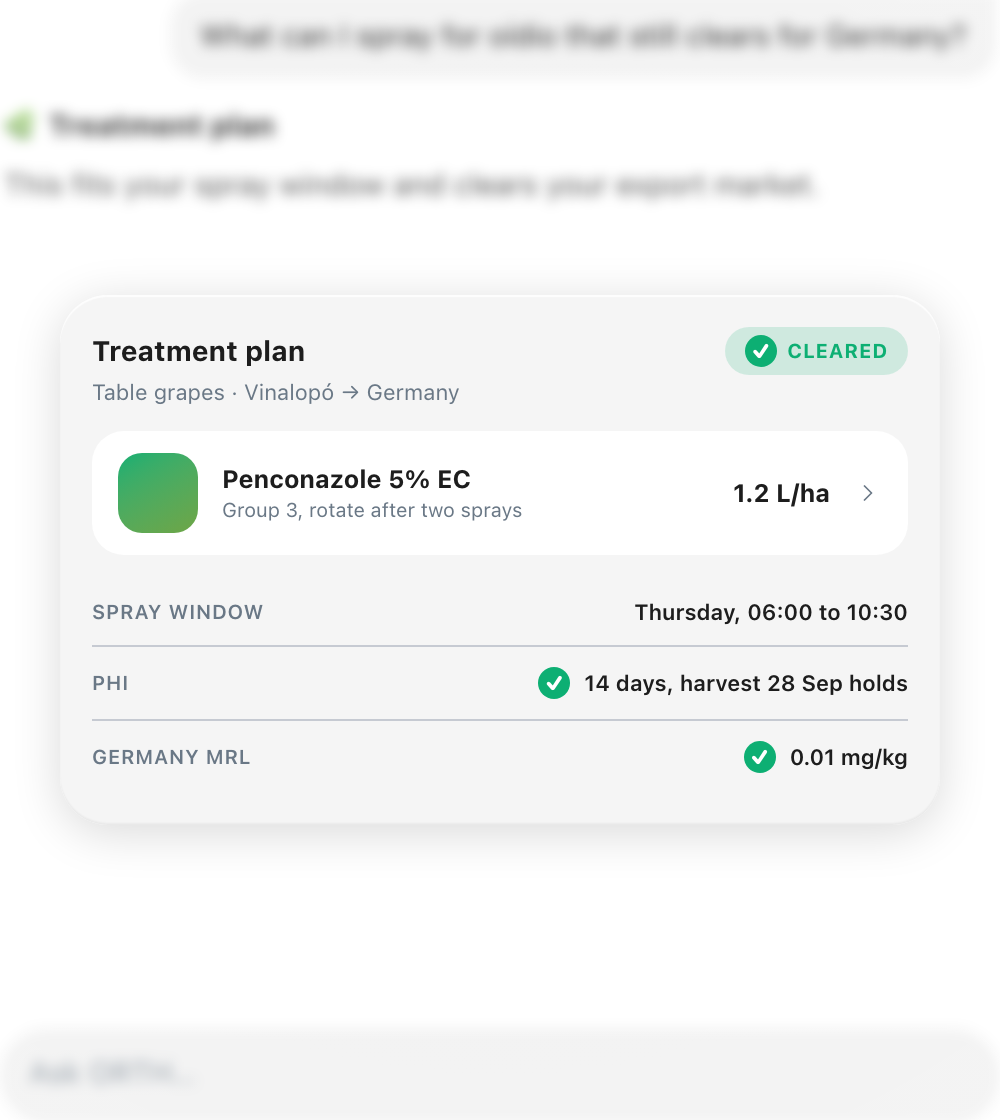
Feature 01Create a plan from chat or the home screen Tap Create a Plan on the home screen and choose one of nine categories, such as Nutrition, Crop Protection, Irrigation or Business Planning. The chat opens with that category as context and ORTH answers with a plan proposal. You can also start a plan from the farm profile, a plot profile, the Plans screen, or by asking for one in any chat. Feature 02A proposal you can read in the chat ORTH describes the plan in plain language with a table of recommended actions, followed by a plan card. The card names the plan and its plot, says how many actions are ready and how many need more detail from you, and leads into the review step. Once the plan is created, the card stays in the conversation as a record of what was agreed. Feature 03Review every action before it exists Nothing is created until you have seen it. Every proposed action appears as a card with date, plot, assignee, category and details. Anything ORTH could not establish, such as a due date, stays empty and is flagged, and complete actions carry a green tick. The button counts your progress and becomes Create actions once every gap is filled. Select several actions to change date, category, plot or assignee for all of them at once. Feature 04Edit a live plan in bulk Edit plan switches the list into edit mode. Select actions, or use Select All, and apply the same bulk changes as in review. Every change is staged, with deletions struck through, and nothing is saved until you confirm. Completed actions stay in the list and can only be deleted. Feature 05Plans across the farm The Plans screen lists every plan with its progress and where it applies, with search and filters for status, farm and plots, and category. A plan appears on every plot profile where it has actions, and opens on that plot’s actions first. The ⋯ menu renames the plan, changes its category, adds an action or deletes it.